#1 Method – Using Kingo ROOT

Kingo
ROOT is One – Click Root Designed to work on Windows Computer. It helps
to root any Android Smartphones in single click which has a success
rate of 80-90%. This is the best Android rooting software through PC
available in the market. This is the only one click root app which has
tones of developers working on it to bring improvements and to increase
the device limit in every update which is released frequently.
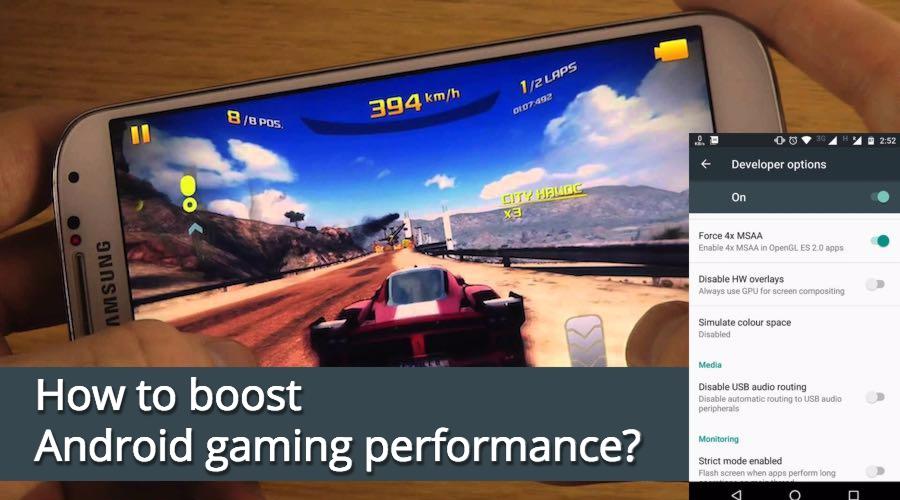
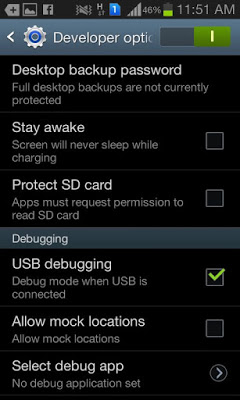
Step 1. Enable USB Debugging Mode on your Android smartphone. To enable USB debugging. Go to
Settings > Developer Option > USB debugging. Developer Option is Hidden for Android 4.2.2 & Above, to show this option Go to
Settings > About phone > Build Number ( Tap on it
7 times until it shows you are now a Developer.)
 Step 2. Download
 Kingo
Root Windows Application and install it normally in your Windows PC.
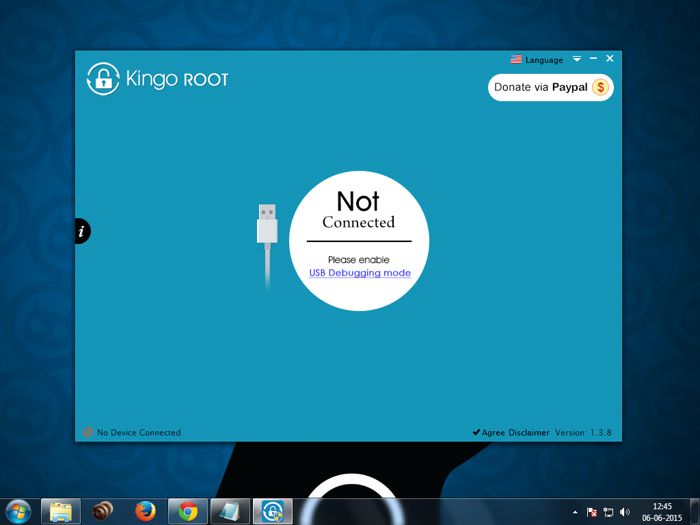
Once you have Installed Kingo Root App in your Windows PC, you will see a
window similar to this.
 Step 3.
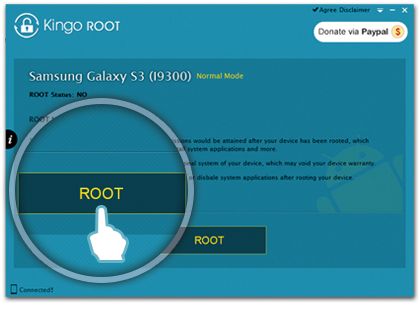
Once your Smartphone is connected successfully to the Computer
(Enabling USB Debugging), Kingo Root will Automatically detect your
device. Now, Click on ‘Root’ Button to begin the rooting process.
 Step 4.
Now Kingo Root will Automatically Root your phone and install SuperSU.
Now your Android Device is rooted, To confirm Check for an App named
‘SuperSU’ on your phone. Congratulations, you have successfully Rooted
your Android Smartphone. I hope this guide helped in rooting your phone.
Check if you are successfully rooted by downloading and installing
Root Checker App from Play Store. If Kingo Root was unable to detect or ROOT your device you can use other One click Root Apps mentioned below.
#2 Method – Using VRoot
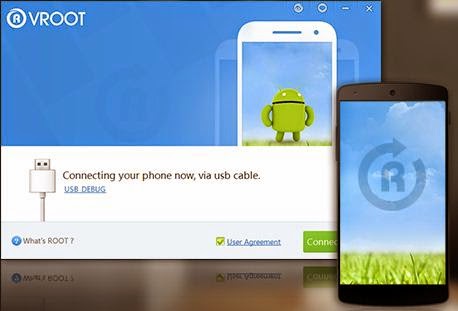
Vroot’s
goal is providing the excellent and simplest experience for all android
users. The newest version of Vroot has supported for more than 8000
kinds of Android devices. It is more effective, easier and faster than
you can imagine.
Step 1. First of all,
Download the VRoot App for Windows PC. Install it. Just click Next and Launch it.
Step 2. Connect your Android device and make sure that
USB Debugging mode is enabled from
Settings > Developer Options.
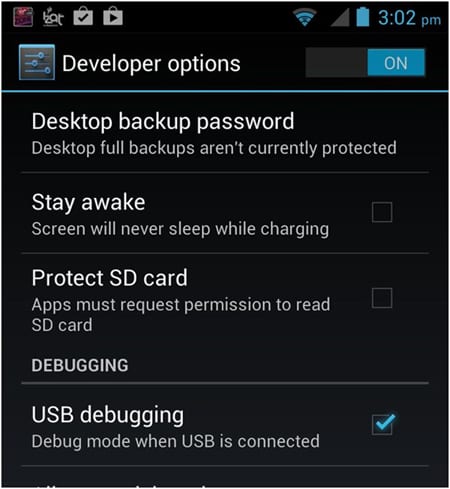 Step 3.
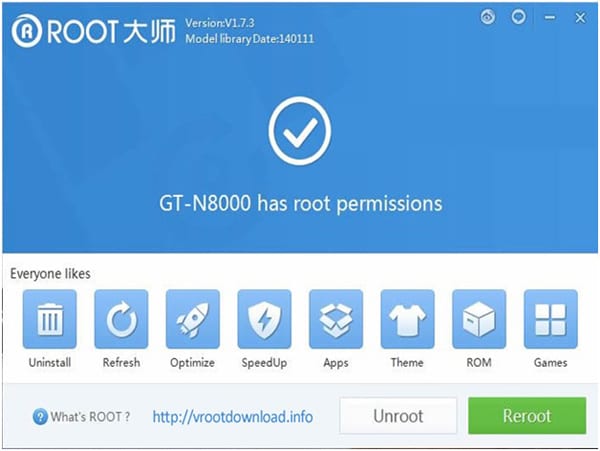
 From
VRoot on your PC, click
Root.
In my case, I have a rooted device, so, I am getting the ‘Reroot’
option. On a non-rooted smartphone, the Reroot option will be replaced
with
‘Root’
 Step 4.
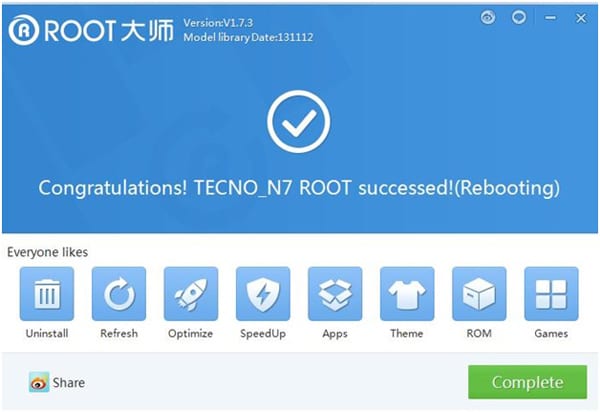
 Wait for the result. If it’s a success, your device will reboot and you can now disconnect your Android device from your PC.
Check if you are successfully rooted by downloading and installing
Root Checker App from Play Store.
#3 Method – Using Root Genius

Root
genius is the best & easy-to-use rooting software with a high
success rate for Mediatek devices. Root Genius is a Windows Application.
There are fewer chances of this rooting your phone properly.
Step 1. Download and Install Root genius for Windows. Run
Root genius as administrator and connect your Android device to your PC via USB cable. Wait for the drivers to completely load.
Step 2. Enable
USB Debugging mode from
Settings > Developer options from your Android device.
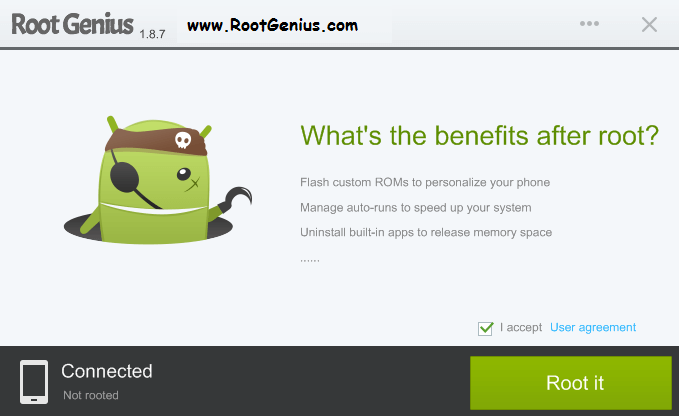
Step 3. Just
follow the instructions shown on the Root genius based on your Android
version. Carefully read the notifications before continuing. Click
Root it to begin the rooting process.
 Step 4.
 It could take 2 up to 3 minutes for the rooting process to be completed. (Don’t unplug the USB cable).
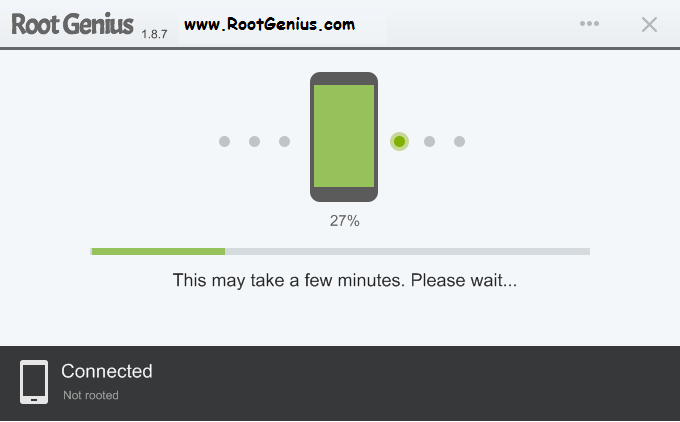
When done, click Finish and it will reboot your phone. Check if you are successfully rooted by downloading and installing
Root Checker app from Play Store.
#4 Method – Using Unlock Root
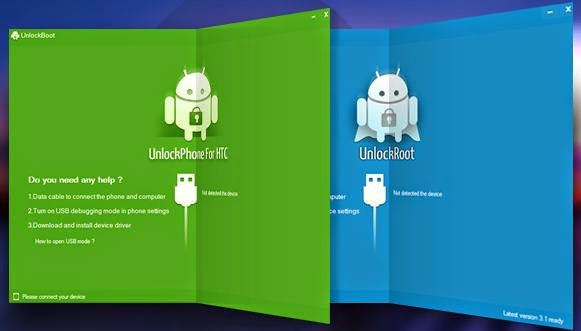
Unlock
Root roots and unlocks the boot-loader of various Android devices. They
have their own way of rooting and unlocking. To use this method for you
to root your phone, they have their guides provided on each android
device. Just visit
Unlock Root and follow their own guides for your device.